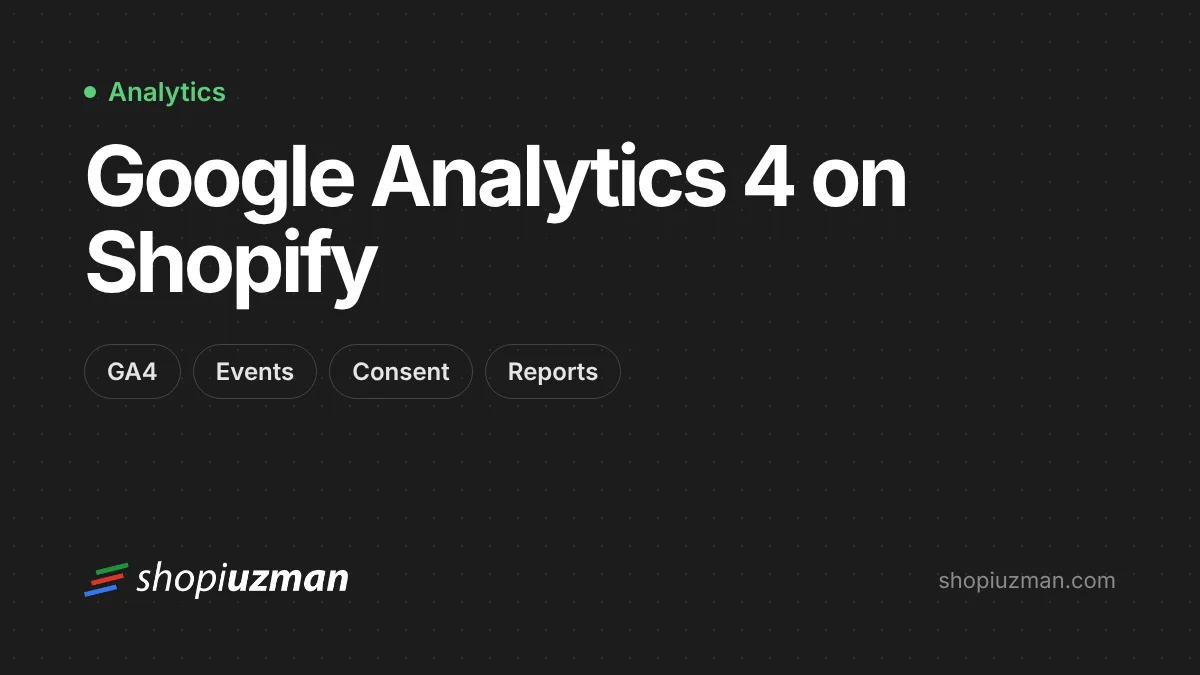
Shopify's own analytics tell you what sold. Google Analytics 4 tells you how people found you and what they did before buying, and it connects to Google Ads. Setting it up takes a few minutes; setting it up correctly, without duplicate or missing events, is what this guide is about.
Step 1: Create a GA4 property
In Google Analytics, create a property for your store with your reporting time zone and currency, then add a web data stream for your primary domain. If you already have a property, you can use it.
Step 2: Connect with the Google & YouTube app
- Install Shopify's Google & YouTube app from the Shopify App Store.
- Connect the Google account that has access to your GA4 property.
- In the app's settings, choose your GA4 property.
The app sends the standard ecommerce events, including page_view, view_item, add_to_cart, begin_checkout and purchase, through Shopify's customer events system, so checkout and purchase tracking works without theme edits.
Step 3: Remove old tracking
Duplicate tracking is the most common problem we see. Check for:
- a GA4 or gtag snippet pasted into
theme.liquid; - an old Google Analytics field in Online Store preferences or old "additional scripts" on the order status page;
- a second app or a custom pixel also sending GA4 events.
Keep one method. If you need custom events, add them in a custom pixel in Settings → Customer events, not in several places.
Step 4: Check that events arrive
Open GA4's Realtime or DebugView report, then browse the store, add a product to the cart, start checkout and place a test order. Each step should show up once. After a day or two, compare GA4 purchases with Shopify orders for the same period.
Step 5: Handle consent
If you sell to the EU, UK or other regions with privacy rules, set up Shopify's customer privacy settings and cookie banner (or a consent app). Shopify's customer events respect the visitor's choice. Enable Google Consent Mode where your setup supports it, so GA4 can model some of the data from visitors who decline cookies.
Step 6: Configure the property
- Mark
purchaseas a key event (conversion). - Add your payment provider domains to the list of unwanted referrals, if they appear as traffic sources.
- Set data retention to the longest period available.
- Link Google Ads and Search Console to the property.
Reports worth checking every week
| Question | Where in GA4 |
|---|---|
| Which channels bring sales? | Acquisition → Traffic acquisition, with purchase revenue |
| Where do shoppers drop off? | Explore → Funnel exploration: view item → add to cart → checkout → purchase |
| Which landing pages convert? | Engagement → Landing page, with key events |
| Which products sell after viewing? | Monetisation → Ecommerce purchases |
If your numbers don't add up or you need custom events and server-side tracking, see our Shopify Google Analytics setup service.
Frequently asked questions
Why don't GA4 and Shopify show the same number of orders?
They measure differently. Shopify records every order; GA4 records what the browser reports, which is affected by consent choices, ad blockers and attribution settings. A gap of some percent is normal; a large gap usually means a tracking problem.
Can I still add the GA4 tag to my theme code?
You can for storefront pages, but Shopify's checkout doesn't run theme code, so purchase tracking would be incomplete. Use the Google & YouTube app or a custom pixel in Customer events instead.
Do I need Google Tag Manager?
Not for basic GA4 tracking. Tag Manager helps if you manage many tags; on Shopify it is usually added through a custom pixel.

Author
Uğur KeskinFounder @ShopiuzmanFounder of Shopiuzman. He builds, migrates and grows Shopify stores for brands in Türkiye, Europe and the US, and leads the development of our apps on the Shopify App Store.