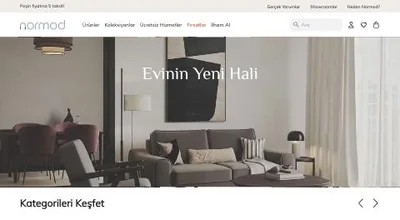
A Shopify theme controls how your store looks and how pages are laid out. With current Online Store 2.0 themes, most changes are made in the theme editor without code. When you do need code, there are safe ways to do it.
Before you change anything
Duplicate your live theme (Online Store → Themes → ⋯ → Duplicate) and work on the copy. Preview it, share the preview link for feedback, and publish when you're happy. That way the live store is never half-finished.
What you can do in the theme editor
Theme settings
Colours, fonts, button styles, logo, favicon, social links and cart behaviour apply across the whole store. Set these first so every page is consistent.
Sections and blocks
Each page is made of sections (a banner, a featured collection, a text block) that contain blocks (a heading, a button, an image). You can add, remove, reorder and hide them. Themes from the Theme Store come with a library of sections; apps can add their own blocks.
Templates
Products, collections and pages can each have several templates. Use an alternative product template, for example, for products that need a size guide or a video, and assign it in the product editor.
Dynamic content with metafields
Metafields store extra information on products, collections and more, such as ingredients, care instructions or a size chart. In the theme editor you can connect a block to a metafield, so each product shows its own content in the same layout.
When code is the right tool
- A new section type that the theme doesn't offer
- Changing how existing sections behave, beyond their settings
- Performance fixes and cleaning up leftover app code
- Integrations that need markup in specific places
Shopify themes are built with Liquid, HTML, CSS and JavaScript. You can edit them in ⋯ → Edit code, or, for larger work, with Shopify CLI and version control.
Safe customisation habits
- Work on a copy, never directly on the live theme.
- Prefer new files (a new section or snippet) over editing core theme files; updates are easier to merge.
- Keep a change log of what was edited and why.
- Test on mobile, where most visitors browse.
- Watch speed: every new script and image adds weight. See our speed guide.
Customise or build a custom theme?
| Customise an existing theme | Custom theme | |
|---|---|---|
| Speed to launch | Fast | Longer |
| Uniqueness | Moderate | Fully tailored |
| Updates | From the theme developer | Your responsibility |
| Best for | Most new and growing stores | Brands with specific design and feature needs |
Small jobs like removing "Powered by Shopify" take minutes. For new sections, a redesign or a bespoke theme, see our Shopify theme development service.
Frequently asked questions
Will theme updates overwrite my customisations?
Changes made in the theme editor are usually carried over when you update a theme from the Theme Store. Code edits are not; you need to reapply them to the new version.
Can I use a different layout for some products?
Yes. Create an alternative product template in the theme editor and assign it to the products that need it.
Do I need a developer to customise my theme?
Not for most changes. Colours, fonts, sections, templates and content are all managed in the theme editor. A developer helps with new section types, custom features and performance work.

Author
Uğur KeskinFounder @ShopiuzmanFounder of Shopiuzman. He builds, migrates and grows Shopify stores for brands in Türkiye, Europe and the US, and leads the development of our apps on the Shopify App Store.