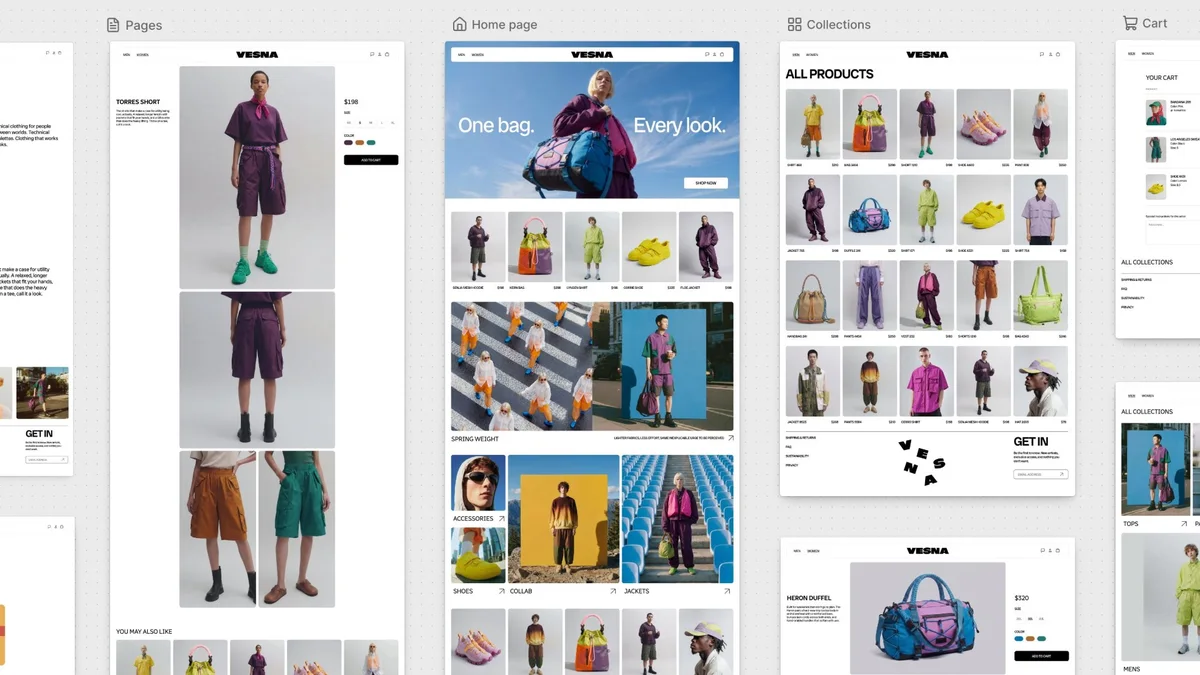
For years, designing a Shopify store worked the same way: pick a theme, arrange sections and blocks in the theme editor, and for anything the theme didn't allow, write code or hire a developer. Canvas, introduced on 1 October 2026, changes that. You see every page of your store in one workspace, describe what you want to Sidekick, Shopify's AI assistant, and watch the change appear on your real store.
This guide covers what Canvas is, how to open it, what it can do and, just as important, what it can't do yet. At the end we share which stores should try it now and which should wait.
What is Shopify Canvas?
Canvas is a visual workspace for creating and editing your Shopify theme. It launches alongside the existing theme editor rather than replacing it, and Shopify has said plainly that it isn't replacing the current editor yet. The main differences:
- Your whole store on one screen: home, product, collection, cart and other pages sit side by side. Pan across the store to judge it as a whole, zoom in for detail.
- The real store, not a mockup: Canvas renders your store's actual code, not a static preview. Pages are interactive and animations run.
- Two ways to edit: click an element and edit it yourself, or describe the change to Sidekick. Sidekick can also make changes that aren't available in a block's settings.
- Test with real content: check key pages with different products, collections and screen sizes.
How Sidekick works inside Canvas
Sidekick is what makes Canvas different. According to Shopify, it doesn't just execute commands, it takes part in the design process:
- It asks questions before starting, proposes directions and adjusts based on your feedback.
- It remembers your preferences and carries earlier design decisions into later work.
- It screenshots its own work so it sees what you see, validates its code and repeats those checks before handing the result back.
- It handles everything from a small edit in one section to a store-wide redesign.
Shopify says Sidekick made more than 25 million theme edits in the first half of 2026, and that it simplified its theme architecture so the agent can understand and change a store's structure more easily. Ben Sehl, Shopify's director of product, says a merchant can now build a fully custom store in about twenty minutes. That's Shopify's claim; in practice, the time depends on how clearly you can describe your brand and how many rounds of changes you ask for.
How to open Canvas
- In your Shopify admin, go to Online Store > Themes. If Canvas is available for your store, you start it from here.
- Create a new theme or duplicate an existing one. Creating a theme starts a Sidekick conversation about your brand, and the result is added to your theme library unpublished. Duplicating a supported theme creates a copy that can only be edited in Canvas, while the original stays in the standard editor.
- Design: describe what you want or click elements to edit them yourself. Changes save automatically.
- Publish: the button reads "Publish" for an unpublished theme and "Update" for your live theme. After a confirmation step, changes go live. If publishing fails, the dialog lists the errors and offers "Fix with Sidekick".
Themes edited in Canvas carry a Canvas badge in the theme library, so you always know which editor a theme belongs to.
Requirements
- Early access: according to the Shopify Help Center, Canvas is in early access and only available to certain stores.
- Desktop only: it doesn't open on phones or tablets.
- The right plan: you need a plan that includes theme customization. If you move to a plan without it, you can still view Canvas-edited themes but can't edit or publish them.
- Staff permission: staff need permission to edit theme code to open Canvas.
- Supported themes: Shopify-developed themes and custom themes. Third-party themes bought from the Theme Store aren't supported at launch.
Current limitations
Canvas is a first release. Shopify says the gaps aren't intentional omissions but reflect how early the product is. Still, here's what to know before you commit:
| Area | In Canvas | What it means |
|---|---|---|
| Translation | Theme content can't be translated in Canvas | Translations must be handled in the Translate & Adapt app |
| Markets | Themes can't be customized per market | Not suitable if you use different designs by country |
| Apps | App blocks and app embeds can't be added or configured | Blocks for reviews, chat or loyalty apps can't be managed |
| Theme updates | Canvas-edited themes stop receiving updates | New features and fixes from the theme developer won't arrive |
| Files | Theme files can't be downloaded | Keep backups in the theme library and version history |
| New blocks | Blocks can't be added manually | You ask Sidekick to add them |
Undo and version history
You can undo your own edits, but any change Sidekick makes clears the undo history. To reverse an AI change, ask Sidekick to change it back or restore an earlier version from the theme's version history. Duplicating the theme before a big change is a good habit for exactly this reason.
Who should try it now, and who should wait?
Based on our experience building and developing Shopify stores, here's our recommendation:
- New stores: if you sell in one language and start with one of Shopify's free themes, Canvas is a strong starting point. Describe your brand, products and audience clearly, then refine the first draft over a few rounds.
- Existing stores: don't convert your live theme directly. Duplicate it, experiment in Canvas, and check the result with different products and on mobile.
- Multilingual and multi-market stores: if you sell in several languages or use Markets to tailor the experience by country, wait for now. Until translation and market support arrive, the standard editor is the safer choice.
- Premium theme users: if your theme comes from a third party, it won't open in Canvas anyway. Stay with your current setup until support arrives.
- Stores in peak season: don't make major design changes to your live theme right before Black Friday or the holidays. Keep experimenting on a copy and publish once the rush is over.
Does Canvas replace designers?
Canvas makes a good-looking store dramatically cheaper. Many changes that used to need a developer now take a sentence. But AI works best when you know what you want. You still decide which pages drive sales, what's missing from your product pages, and how payments, apps and shipping integrations fit together. Site speed, SEO and multilingual structure aren't things Canvas solves on its own either.
In short, Canvas speeds up design; it doesn't replace strategy. To see what your current theme can already do, read our Shopify theme customization guide and our list of the best Shopify themes. For how AI is changing the shopping side, see our article on Shopify GEO.
If your store needs a custom design, a multilingual setup or something Canvas doesn't support yet, we can plan it together through our Shopify theme development service.
Source: Shopify Help Center, Canvas. Canvas is in early access, so features and limits may change; this article reflects the situation as of 10 November 2026.
Frequently asked questions
Does Shopify Canvas cost extra?
Shopify has not announced a separate fee for Canvas. You need a plan that includes theme customization. Canvas is in early access and only available to certain stores, so if you don't see it on the Themes page in your admin, it hasn't reached your store yet.
Will Canvas break my current theme?
Not unless you publish. Opening a supported theme in Canvas creates a copy, and the original stays editable in the standard theme editor. Changes save automatically but only reach customers once you publish them.
Can I use Canvas with a premium theme I bought?
Not yet. Canvas works with Shopify-developed themes and custom themes; third-party themes from the Theme Store aren't supported at launch. Shopify says it plans to add that support over time.
Should I use Canvas on a multilingual store?
Be careful. Theme content can't be translated inside Canvas, translations go through the Translate & Adapt app, and themes can't be customized per market. If you sell in more than one language, test on a copy first and confirm your translations still work.
Do Canvas-edited themes get theme updates?
No. Themes edited in Canvas stop receiving theme updates and their files can't be downloaded. That's why working on a copy is safer than converting your live theme directly.

Author
Uğur KeskinFounder @ShopiuzmanFounder of Shopiuzman. He builds, migrates and grows Shopify stores for brands in Türkiye, Europe and the US, and leads the development of our apps on the Shopify App Store.